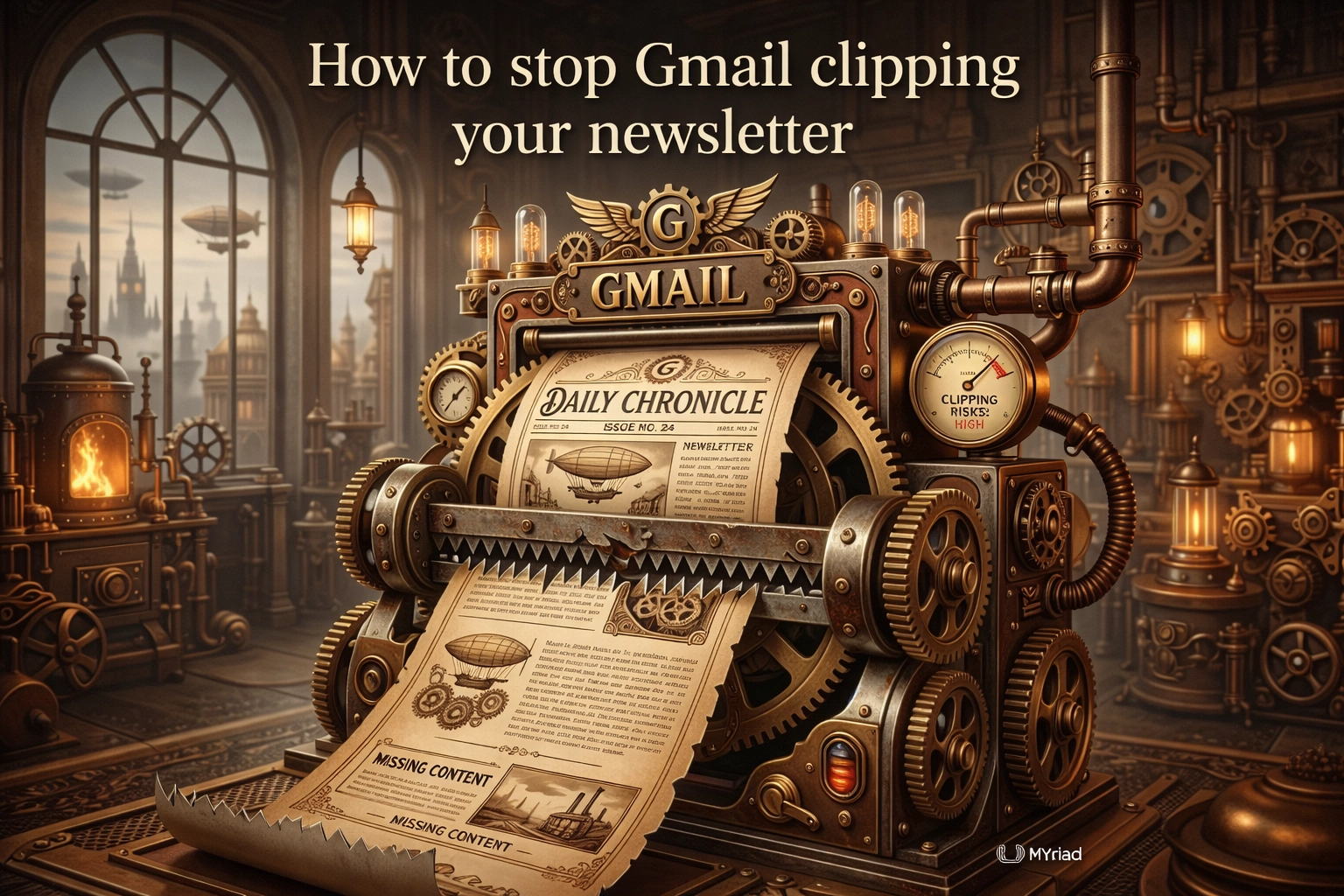
You spend ages on a newsletter. The copy is clear. The images look good. You send it, open the test in Gmail, and see: "[Message clipped] View entire message."
That small note is not just untidy. It means Gmail has cut your email in half because the code is too heavy. Readers can still click to see the rest, but many will not. That can quietly damage results, hide key content, and muddle your reporting.
For small business owners using tools like MailerLite or Keap, this is an easy problem to miss. It sits in the background like a drawer that never quite shuts. You can keep working around it, but it keeps stealing time.
The good news is that Gmail clipping is usually fixable. Once you know the 102kb rule, the path is much clearer.
Why clipping matters more than it looks
When Gmail clips an email, it does not just hide the bottom bit. It can break how the email works.
Your tracking can go wonky. Many email platforms place their open tracking pixel near the bottom of the email. If Gmail clips before that point, the pixel may not load. Your reports then look worse than reality, which makes it harder to judge what is actually working.
You can also lose clicks. Footer links, secondary calls to action, and useful notes often sit near the end. If they are hidden, readers are less likely to see them.
There is also a compliance issue. Your unsubscribe link needs to be easy to find. If clipping hides it, some people will not go hunting for the full message. They may mark the email as spam instead. That is the sort of small friction that creates bigger problems later.

The 102kb rule
Gmail clips emails when the HTML size goes over 102kb.
That limit is about the code, not the image file size. Text, layout settings, tracking links, and styling all count. A long email with lots of design blocks can hit the limit faster than you expect.
This catches people out because modern email builders make things look simple on screen. Behind the curtain, they often add extra code for every section, spacer, divider, font tweak, and coloured panel. It is a bit like packing a light bag, then discovering every pouch has a pouch inside it.
If you want a safer target, aim for under 100kb. That gives you a little breathing room for the extra tracking and link code your platform may add at send time.
If you are building connected systems, as we explore in our guide to CRM systems and automations, this matters more than it seems. A tidy email is part of a tidy system.
How to check your email size
Before cutting anything, check the actual size of the email.
Send a test to aboutmy.email. It gives you a simple technical summary, including the email size.
Look for the "Email Size" figure. If it is under 102kb, Gmail should not clip it. In practice, under 100kb is better. That small gap acts like spare room in a toolbox. It gives you margin for the last-minute code your platform may add.
If the email is over the limit, do not panic. You usually do not need to slash the message itself. Most of the time, the real issue is the layout code wrapped around it.

How to get under 102kb
Reducing email size is usually about removing clutter from the structure, not gutting the message.
Use fewer blocks where you can. Five separate text blocks create more code than one tidy block with five paragraphs.
Drop decorative dividers if they are not helping. White space often does the same job with less baggage.
Keep the footer lean. A long row of social icons and extra links may look harmless, but each one adds code.
Paste text as plain text when possible. Copying from Word or Google Docs can drag in a surprising amount of hidden formatting.
Go easy on background colours and fancy section styling. Every visual tweak has a code cost.
Then test again. Make one or two changes, send another test, and recheck the size. It is less like demolition and more like tuning an engine. Small adjustments can make the whole thing run more smoothly.

A few practical extras
File size is the main issue here, but it is not the only one worth checking.
Make sure your DKIM and SPF records are set up properly. That helps your emails land in the inbox in the first place.
If your newsletters are often long, try a teaser format. Give readers the key idea, then link to the full article on your site. That keeps the email lighter and often makes the message clearer. It can also support broader goals if you are trying to boost sales and supercharge your list.
It also helps to place a "View in Browser" link near the top of the email. That will not stop clipping, but it gives people a clean escape route if Gmail starts trimming.

Keeping things simple and reliable
At Myriad, we treat email as part of the wider system, not a separate task bolted on at the end. You can build clever automations, connect your CRM, and save hours in the background, but if the final email gets clipped, the system loses clarity at the last hurdle.
Good tech should remove friction. It should feel like a well-built set of rails, not a pile of spare parts on the floor. Keeping your email under the 102kb rule is one of those quiet fixes that saves time later.
If email changes have started to feel messy, you are not alone. We have also written about recent changes by Google and Yahoo that affect small businesses.
A quick check of your template today could save a lot of confusion later. If you want help making your systems clearer and lighter, that is exactly the sort of problem we like solving.